If you want to write a letter with an accent in Google Docs, but you don’t have the language with that letter installed or you don’t know where that letter is on the keyboard, in our opinion the most convenient way is to draw that letter manually. This way, you won’t make any mistakes, and […]Read More
Tags : letter
In certain situations, Google Docs will automatically convert a lowercase letter to an uppercase one, such as when you start a sentence with a lowercase letter. If you don’t want Docs to automatically convert lowercase to uppercase, you can turn this off in the settings. Watch our video tutorial where we show you how to […]Read More
If you often write in a language that contains letters with accent marks, it is best to get a specialized keyboard that contains the letters you need. However, if you are unable to get to such a keyboard, Microsoft Word offers a solution. Watch our video tutorial where we show you how to add accent […]Read More
When you want to write a letter with the accent in Google Docs, you can do so in several ways. One way, which, in our opinion, is the most convenient, is to draw the letter and the accent you want to use by hand. This way, you will certainly not make a mistake, nor won’t […]Read More
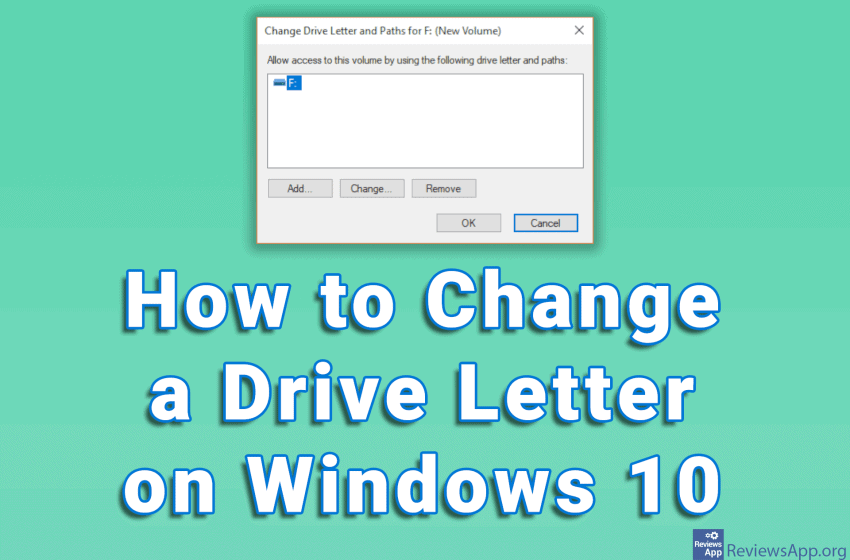
Windows assigns letters to the hard disk partitions in alphabetical order. These letters are changeable and it’s easy to do. If you decide to change the hard disk partition letter, we suggest that you do so as soon as you install Windows and before you install programs on that partition. Failure to do so may […]Read More